

Key Features
- Free Frontier Models - Chat with models like Claude Opus 4.6, Gemini 3.1 Pro, GPT 5.4, DeepSeek V3.2, etc. Currently at no cost, no API key required
- Chat, Trace, and Raw Views - Switch between the normal Chat view, a Trace timeline of every step with per-step latency and tokens, and the Raw JSON payload sent to the model — all without leaving the conversation
- Multi-Model Compare Mode - Send one prompt to up to 3 models and get a split-screen App Builder for each one, so you can compare how each model interacts with your MCP server(s) side by side
- Inline Tool Results and Widgets - See tool calls, results, and supported app UIs directly in the chat thread
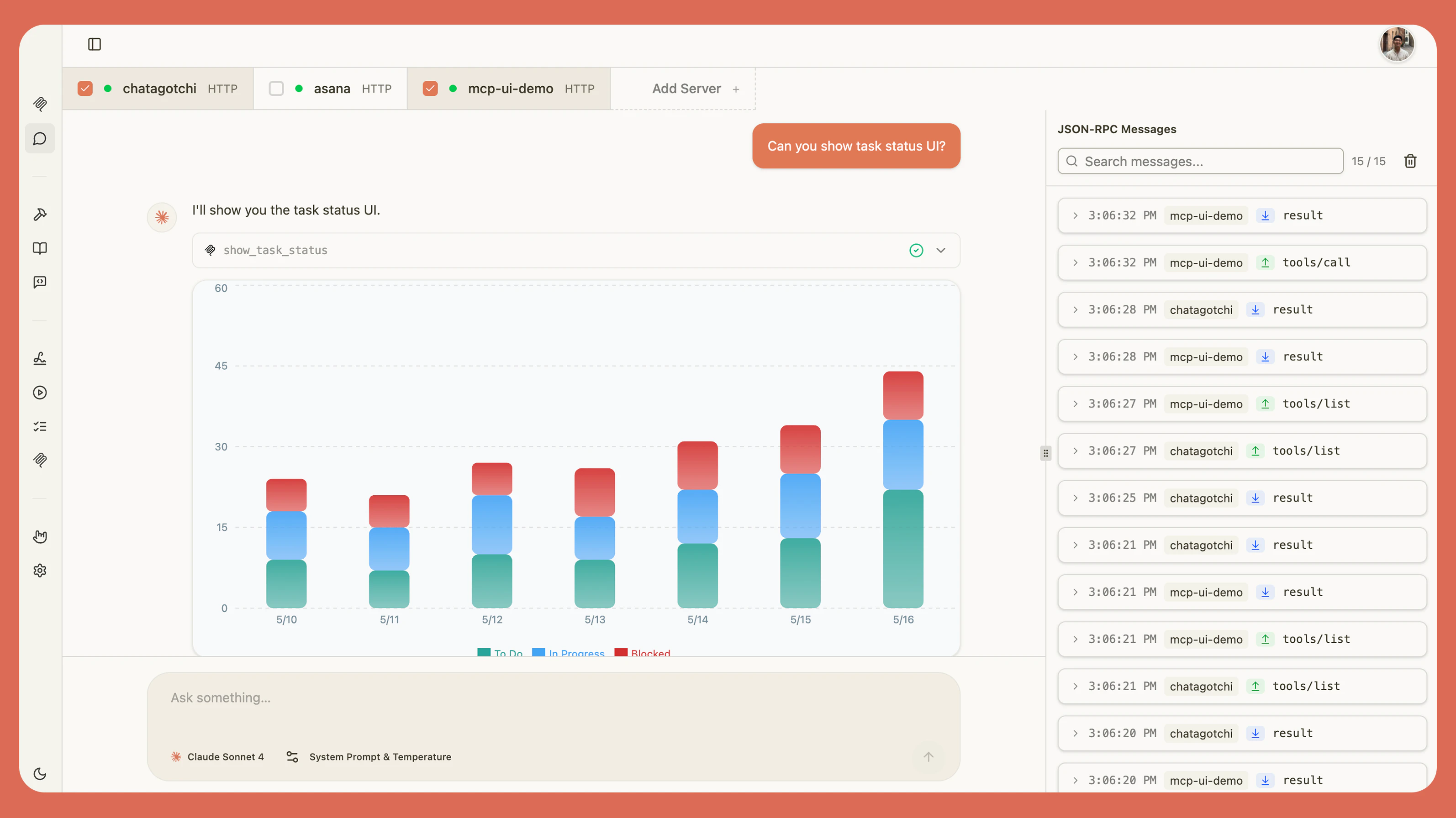
- Real-time Debugging - Split-panel view with chat on the left and JSON-RPC logs on the right
- Skills and Prompts - Use
/to inject skills and MCP prompts directly into chat - Elicitation Support - Interactive prompts and forms from your MCP server(s)
- Agent Controls - Tune system prompt, temperature, tool approval, and context usage from the chat toolbar
Setup
Start with MCPJam free models:- Open the Chat tab - Connect your server and open Chat.
- Pick a model (or a few) - Choose one model from the dropdown, or toggle Multiple models on to run several side by side.
- Send a message - Type into the chat input and watch your MCP server(s) respond.
ChatGPT Apps and MCP Apps
Chat can render custom UI components from both ChatGPT apps and MCP apps. Widgets can display interactive visualizations, trigger tool calls, send follow-up messages, and open external links. Whenever a widget is rendered, MCPJam gives you a row of debugging tools to inspect and debug it directly from the chat thread.Chat, Trace, and Raw Views
The chat surface has three views you can switch between at any time, so you can inspect a conversation from different angles without leaving it:- Chat - The normal conversation view with inline messages, tool calls, and widgets. This is where you actually talk to the model and see tool results and rendered widgets
- Trace - A timestamped timeline of every step in the conversation (user turns, agent turns, tool calls) with both per-step and total latency and token counts. Expand any step to inspect its raw input and output payloads
- Raw - The JSON payload sent to the model (system prompt, tool definitions, and chat messages). Your live request appears after you send a message. Useful for debugging tool schemas or verifying what the model actually sees
Multi-Model Compare Mode
Compare Mode lets you send a single prompt to up to 3 models at once. It’s like having one App Builder per model. To enable it, open the model picker and toggle Multiple models on, then select the models you want to compare.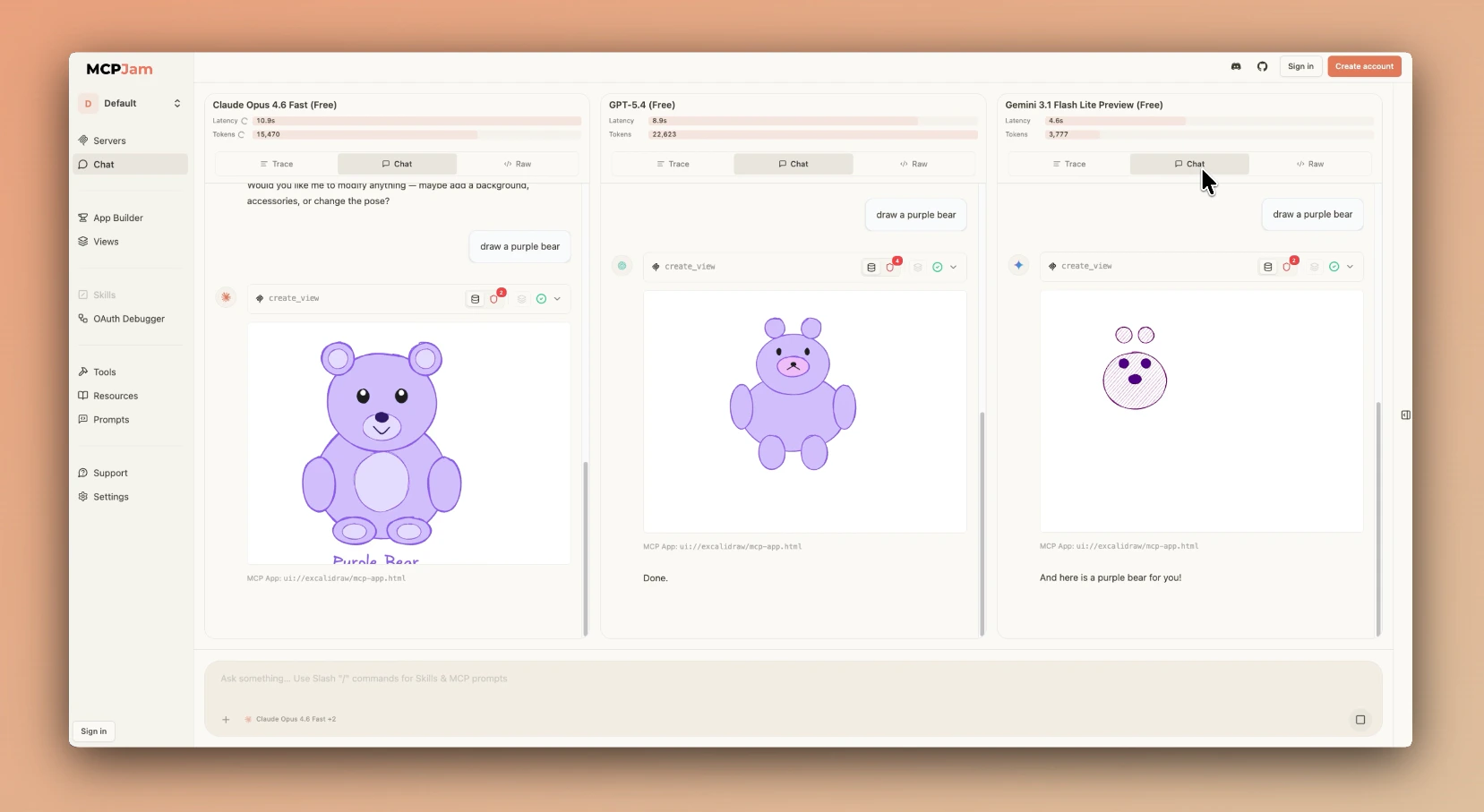
Chat Layout
The Chat tab uses a split-panel interface: Chat Panel (Left)- Send messages and view LLM responses
- See tool calls and results inline
- View rendered UI from supported ChatGPT apps and MCP apps
- Access skills and MCP prompts by typing
/
- Real-time view of MCP protocol messages
- Inspect requests and responses between MCPJam and your servers
- Debug tool invocations and error responses
Input Bar Controls
Click the + button on the left of the chat input bar to manage servers, attach files, and tune how the model behaves: Servers A list of every server in your workspace, sorted by status. Each row shows the server name and its transport type —HTTP or stdio(npx/desktop only). Connect or disconnect a server inline, or toggle it on and off for the current chat.
- + Add server — Register a brand-new server without leaving Chat. Opens the add-server modal directly from the popover.
Skills
MCPJam lets you observe how your skills behave when paired with your MCP servers. See the Skills tab for setup and management. There are two ways a skill ends up in a conversation:- Inferred — The model picks a skill on its own based on your prompt, loads its instructions, and runs it against your MCP tools. You observe how the skill behaves end-to-end without having to invoke it manually.
- Explicit — Type
/in the input and pick a skill from the SKILLS section of the picker. The skill content is front-loaded before your message instead of waiting for the model to decide.
Prompts
Prompts are MCP prompt templates exposed by your servers viaprompts/list. Type / in the input to open the picker (the same one used for skills) and pick one from the PROMPTS section. Selected prompts appear as expandable cards above the input — showing the source server ID, the prompt description, its arguments (required ones marked with *), and a preview of the first message — so you can review or remove them before sending.